
Nagios XI’s Manage Components section allows you to create reusable Actions that can be triggered directly from host or service detail pages.
In this guide we’ll build a common Windows-focused action "Restart the Service" using a secure WinRM-over-HTTPS pipeline with Kerberos or CredSSP authentication.
This action will be assigned to all Windows Service State checks via a Service Group in Nagios XI, ensuring it appears only where relevant (e.g., on checks monitoring services expected to be Running).
Security Note: Actions in this example are restricted to Nagios Admins only.
You can set these to fit however you have your Nagios user permissions configured.
Credentials are never hardcoded, exposed in the web UI, or logged in plaintext.
This blog is assuming that you have WinRM over HTTPS configured in your environment.
If you want to Set up WinRM over HTTPS I have done a video as well as documented the settings in the BTPS Security Package Project.

We'll cover:
- Creating the Action in Admin → System Extensions → Manage Components → Actions
- Setting Action Type = Command and using sudo to run a wrapper script
- Hardening the wrapper bash script, Python WinRM client, and credential storage
- Protecting the Python script directory with a cron-driven chmod/chown job
- Assigning the action to host groups (windows-servers) and service groups (windows-service-state-checks)

Why Use Actions?
Actions give operators a one-click way to remediate common issues without SSH/RDP access. By centralizing the command execution through Nagios XI:
- Audit trail is automatic (who ran what, when)
- Privilege escalation is controlled via visudo
- Sensitive credentials live only in a root-owned Python file
Step 1: Create the Secure Directory for Python Scripts
All Python WinRM scripts live under /usr/local/nagios/libexec/actions/.
Nagios updates can reset permissions, so we lock it down and enforce it with cron.
[root@nagiosxi ~]# mkdir -p /usr/local/nagios/libexec/actions
[root@nagiosxi ~]# chown root:root /usr/local/nagios/libexec/actions
[root@nagiosxi ~]# chmod 700 /usr/local/nagios/libexec/actions
Cron Job to Preserve Permissions
If you know of a better way to handle this I am happy to know it. I am hesitant to use chattr in case it messes up NagiosXI updating itself.
[root@nagiosxi ~]# crontab -e*/5 * * * * /bin/find /usr/local/nagios/libexec/actions/ -type f -name '*.py' -exec /bin/chown root:root {} + -exec /bin/chmod 700 {} + >/dev/null 2>&1Step 2: The Python Script
Create /usr/local/nagios/libexec/actions/execute_winrm_service_restart.py.
Never hard-code credentials - use environment variables or a secrets manager in production.
You can set environment variables by creating a file /root/.nagios_secrets with the below contents:
export WINRM_USER="svc_nagios"
export WINRM_PASS="SuperSecret123!"
We then want to set the permissions on the file so only the root account can use it:
sudo chown root:root /root/.nagios_secrets && sudo chmod 600 /root/.nagios_secretsWe can call these variables by name in our Python script after importing them using the "os" Python module.
[root@nagiosxi ~]# vim /usr/local/nagios/libexec/actions/execute_winrm_service_restart.pyThe Python script below uses WinRM over HTTPS with Kerberos authentication as the primary method. If Kerberos fails, it attempts authentication a second time using CredSSP. On Linux systems, these represent the most secure authentication mechanisms available. The Negotiate protocol, in this context, typically defaults to NTLMv1, which is vulnerable to Pass-the-Hash (PtH) attacks and should be avoided when possible. All output from the script is logged to a file. To display results in the Nagios XI web interface after execution, the calling Bash wrapper script reads and prints the contents of this log file.
#!/usr/bin/env python3
# -*- coding: utf-8 -*-
import sys
import subprocess
import argparse
import os
import logging
from pathlib import Path
from winrm import Session
from winrm.exceptions import WinRMError


SECRETS_FILE = Path("/root/.nagios_secrets")

def load_credentials():
    """
    Load credentials from environment or secrets file.
    """
    username = os.getenv("WINRM_USER")
    password = os.getenv("WINRM_PASS")

    # If not set via environment (e.g., sudo -E missing), load from secrets file
    if (not username or not password) and SECRETS_FILE.is_file():
        with SECRETS_FILE.open("r", encoding="utf-8") as f:
            for raw_line in f:
                line = raw_line.strip()
                if not line or line.startswith("#"):
                    continue
                if line.lower().startswith("export "):
                    line = line[7:].strip()
                if "=" not in line:
                    continue
                key, val = line.split("=", 1)
                val = val.strip("\"'")
                if key == "WINRM_USER" and not username:
                    username = val
                elif key == "WINRM_PASS" and not password:
                    password = val

    if not username or not password:
        sys.exit("FATAL: Missing WINRM_USER or WINRM_PASS credentials.")

    return username, password


# --- Logging Setup ---
logging.basicConfig(
    filename='/usr/local/nagios/var/logs/winrm_service_restart.log',
    level=logging.DEBUG,
    format='%(asctime)s - %(levelname)s - %(message)s'
)

class WinRMClient:
    def __init__(self, host, username, password):
        self.host = host
        self.username = username
        self.password = password
        self.session = None

    def obtain_kerberos_ticket(self):
        """
        Run `kinit` to obtain a Kerberos ticket.
        """
        try:
            logging.info(f"Attempting to obtain Kerberos ticket for {self.username}")
            process = subprocess.run(
                ["kinit", self.username],
                input=self.password.encode(),
                stdout=subprocess.PIPE,
                stderr=subprocess.PIPE,
                check=True
            )
            logging.debug(f"kinit output: {process.stdout.decode()}")
            logging.info("Kerberos ticket obtained successfully")
        except subprocess.CalledProcessError as e:
            logging.error(f"kinit failed: {e.stderr.decode()}")
            raise Exception(f"kinit failed: {e.stderr.decode()}")

    def create_session(self, transport):
        """
        Create a WinRM session using the specified transport method.
        """
        try:
            logging.info(f"Attempting to create WinRM session to {self.host} using {transport}")
            session = Session(
                f"https://{self.host}:5986/wsman",
                auth=(self.username, self.password),
                transport=transport,
                server_cert_validation="validate"  # Use "ignore" to skip cert validation
            )
            logging.info(f"WinRM session created successfully with {transport}")
            return session
        except WinRMError as e:
            logging.error(f"Failed to create WinRM session with {transport}: {e}")
            raise Exception(f"WinRM session creation failed with {transport}: {str(e)}")

    def establish_connection(self):
        """
        Attempt Kerberos first, then fall back to CredSSP if Kerberos fails.
        """
        try:
            self.obtain_kerberos_ticket()
            self.session = self.create_session("kerberos")
        except Exception as kerberos_error:
            logging.warning(f"Kerberos authentication failed: {kerberos_error}")
            logging.info("Attempting CredSSP fallback...")
            try:
                self.session = self.create_session("credssp")
            except Exception as credssp_error:
                raise Exception(
                    f"Both Kerberos and CredSSP authentication failed. "
                    f"Kerberos error: {kerberos_error}. CredSSP error: {credssp_error}."
                )

    def restart_service(self, service_name):
        """
        Restart a service using the established WinRM session.
        """
        if not self.session:
            raise Exception("No active WinRM session. Please establish a connection first.")

        try:
            logging.info(f"Restarting service {service_name} on {self.host}")
            result = self.session.run_ps(f"Restart-Service -Name {service_name} -Force -PassThru")
            if result.status_code == 0:
                output = result.std_out.decode('utf-8').strip()
                logging.info(f"Service {service_name} restarted successfully on {self.host}")
                return output
            else:
                error_message = result.std_err.decode('utf-8').strip()
                logging.error(f"Error restarting service {service_name}: {error_message}")
                raise Exception(error_message)
        except WinRMError as e:
            raise Exception(f"WinRM error during service restart: {str(e)}")


def main():
    parser = argparse.ArgumentParser(description="Restart a service on a Windows host using WinRM.")
    parser.add_argument("--host", required=True, help="Target Windows host")
    parser.add_argument("--service", required=True, help="Name of the service to restart")
    args = parser.parse_args()

    username, password = load_credentials()

    try:
        client = WinRMClient(args.host, username, password)
        client.establish_connection()
        result = client.restart_service(args.service)
        print(f"OK: Service {args.service} restarted successfully on {args.host} - {result}")
        sys.exit(0)
    except Exception as e:
        print(f"CRITICAL: {str(e)}")
        sys.exit(2)


if __name__ == "__main__":
    main()
Once the file is created we ensure it has the appropriate permissions.
[root@nagiosxi ~]# chown root:root /usr/local/nagios/libexec/actions/execute_winrm_service_restart.py
[root@nagiosxi ~]# chmod 700 /usr/local/nagios/libexec/actions/execute_winrm_service_restart.py
Step 3: Bash Wrapper Script
The wrapper logs to a rotating file and tails it in real time so the Nagios UI can stream output.
[root@nagiosxi ~]# vim /usr/local/nagios/libexec/execute_winrm_service_restart.shNotice in the below script ".your-domain.com".
Replace ".your‑domain.com" with the actual domain that should be appended to the Windows hostname.
WinRM over HTTPS relies on certificates to guarantee integrity.
Consequently, the Fully Qualified Domain Name (FQDN) appears as the Subject value in the certificate that’s issued.
If the FQDN in the certificate’s subject does not match the FQDN the script contacts, the certificate validation will fail, and the remote connection cannot be established.
If Nagios passes 'DC-001' as the %host% variable, script appends to 'DC-001.your-domain.com'; replace 'your-domain.com' with your actual suffix.
Ignoring certificate validation is considered insecure and should be avoided whenever possible.
If you have a legitimate reason to bypass certificate checks (for example, testing in a controlled environment), you can disable the verification step in the Python script when creating the session object.
Be sure to re‑enable proper validation before moving to production.
#!/bin/bash
# --- Variables ---
LOG_FILE="/usr/local/nagios/var/logs/winrm_service_restart.log"
SECRETS_FILE="/root/.nagios_secrets"

# --- Usage check ---
if [ $# -lt 2 ]; then
  echo "Usage: $0 host service"
  exit 1
fi

HOST="$1"
SERVICE="$2"

# --- Append domain if missing ---
if [[ "$HOST" != *.your-domain.com ]]; then
  HOST="${HOST}.your-domain.com"
fi

# --- Ensure secrets file exists ---
if [ ! -f "$SECRETS_FILE" ]; then
  echo "FATAL: Secrets file not found at $SECRETS_FILE" >&2
  exit 2
fi

# --- Load and export credentials ---
# shellcheck disable=SC1091
source "$SECRETS_FILE"
export WINRM_USER WINRM_PASS

# --- Log tailing (background) ---
/bin/tail -n 0 -F "$LOG_FILE" &
TAIL_PID=$!

# --- Run Python script as root with preserved env ---
sudo -E /usr/bin/python3 /usr/local/nagios/libexec/actions/execute_winrm_service_restart.py --host "$HOST" --service "$SERVICE"

# --- Cleanup ---
kill -9 "$TAIL_PID" 2>/dev/null || true
After you create your Bash script and configure the domain it should use, be sure to set the appropriate file permissions. In Nagios XI, the Host Name field of the host object you are monitoring is passed directly to the Action script. If the Host Name contains a fully qualified domain name (FQDN), the example Action script will detect it and will not append any additional suffix. If the hostname macro expands to an invalid value (e.g., non-FQDN), the WinRM connection will fail due to cert mismatch. To ensure the script works as intended, update the Host Name in Nagios XI to a valid hostname (preferably an FQDN). Once the hostname is correct, the script will receive the proper input and function securely.
[root@nagiosxi ~]# chown apache:nagios /usr/local/nagios/libexec/execute_winrm_service_restart.sh
[root@nagiosxi ~]# chmod 750 /usr/local/nagios/libexec/execute_winrm_service_restart.sh
Step 4: Grant Sudo Privileges to the Nagios Web User
When you install Nagios XI, it automatically adds entries to the sudoers file. You can review those entries by running visudo.
For every action you create in Nagios XI, you must define a matching sudo command.
As of October 30 2025, the use of NOPASSWD cannot be avoided.
Granting a user the ability to run an entire script with NOPASSWD-for example, by using a wildcard at the end of the script name-provides elevated privileges without a password and is therefore risky.
Whenever possible, hard‑code the exact commands that require privileged execution instead of allowing blanket script access.
If you manage a modest number of hosts, consider adding a separate sudo rule for each hostname that the Nagios XI service will invoke.
You can create dozens of distinct lines, each specifying a different host argument.
This granular approach reduces the likelihood of command‑injection attacks.
[root@nagiosxi ~]# visudoExample of a secure sudoers entry that only allows the wrapper script when it is called with a specific hostname and service:
NAGIOSXIWEB ALL = NOPASSWD:/usr/local/nagios/libexec/execute_winrm_service_restart.sh DC-001 TermServiceIn this example, the script may be executed only when the argument DC-001 (the hostname) is supplied. The hostname must match the Host Name value configured in Nagios XI for the corresponding host. When you trigger the Action in Nagios XI, the command automatically receives the host value via the %host% macro we assigned to the Action. We also pass the service’s display name using the %servicedisplayname% macro, which you can find on the service object in Nagios (e.g., "CertPropSvc"). The Bash wrapper script we created appends the FQDN to the hostname if it is missing when the Nagios action submits it, ensuring the script always works with a fully qualified domain name.

This approach is the least secure option. Although the Bash script performs input validation to block command‑injection attempts, relying solely on validation is insufficient. Defense‑in‑depth principles advise avoiding such configurations whenever possible-prefer explicit, whitelisted commands over generic scripts that accept arbitrary input. As you can imagine, if you want this action to work for every service you monitor, your visudo can get pretty large as you would have to define every host and every service on that host on its own line. It may be worth accepting the risk here to rely solely on input validation.
NAGIOSXIWEB ALL = NOPASSWD:/usr/local/nagios/libexec/execute_winrm_service_restart.sh *Step 5: Create the Action in Nagios XI
Navigate to: Admin → System Extensions → Manage Components → Actions → + Add New Action
- Action Name: Restart the Service
- Action Type: Command
- Command:
sudo /usr/local/nagios/libexec/execute_winrm_service_restart.sh "%host%" "%servicedisplayname%" - Enabled: Checked
- Allowed For: Admin Only (or whatever makes sense for your setup)
I assigned the action to the host group and service group just to be specific as possible:
- Host Group: windows-servers
- Service Group: windows-service-states

In NagiosXI it is recommended to use templates on similar services and for similar host types. I use host templates to assign Windows devices automatically to the "windows-servers" group. I use a service template for all of my "Service State Checks" to add services to the "windows-service-states" group.
Step 6: Test the Action
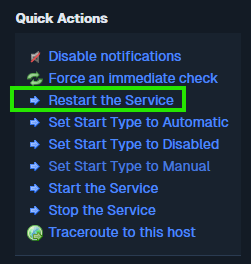
- Go to a Windows host detail page that belongs to the
windows-serversgroup. Click on one of its service objects where you monitor if a service is running or not. - Click the Restart the Service action. You can see in the screenshot below you are able to add as many actions as you like.
- Watch the live log tail in the NagiosXI UI.
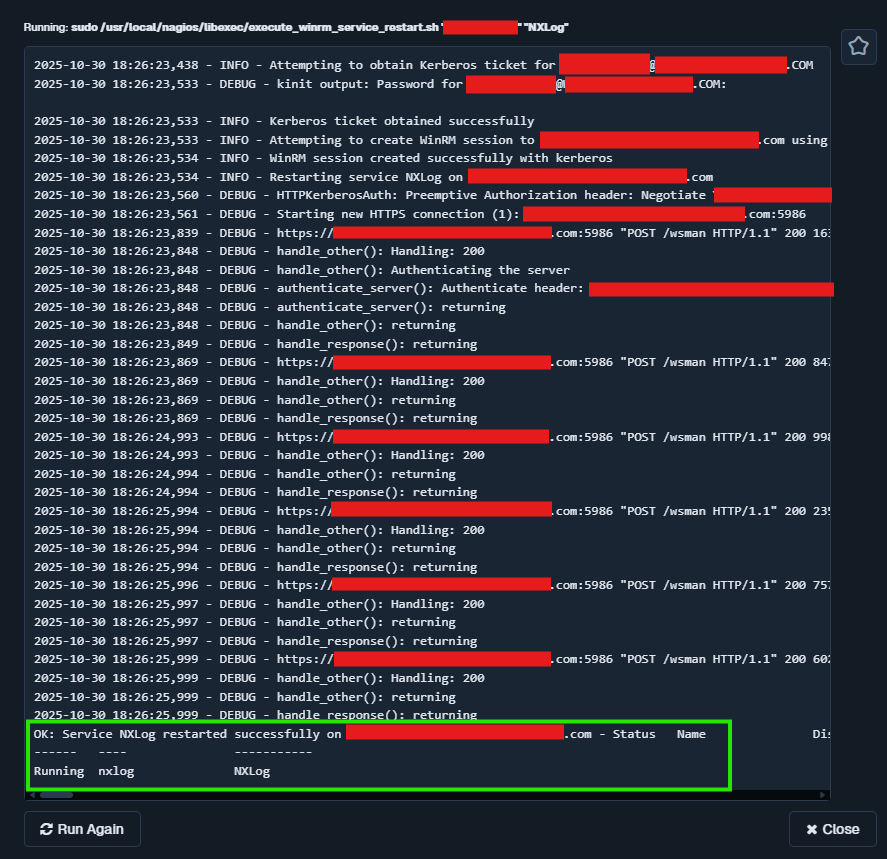
- Verify the log file exists. You may need to create this file and set the user group permissions on it before your action will work:
/usr/local/nagios/var/logs/winrm_service_restart.log


Security Hardening Checklist
| Item | Implementation |
|---|---|
| Credential Storage | Root-only Python file (700) |
| Sudo | NOPASSWD only for the exact script path |
| Directory Permissions | 700 root:root + cron enforcement |
| Transport | WinRM over HTTPS (port 5986) |
| Access Control | Nagios Admin Only permission |
Conclusion
With a few minutes of setup you now have:
- One-click remediation for Windows hosts directly from Nagios XI
- Zero plaintext credentials in the web interface or logs
- Full audit trail via Nagios event logs
- Resilient permissions that survive Nagios upgrades
Adapt the same pattern for any remote command-restart services, clear temp files, trigger backups-while keeping security tight. Happy monitoring!
